# Quick Start

A tutorial guide on how to quickly and easily setup a ForexHero bot

{% hint style="info" %}
IMPORTANT: ForexHero offers forex trading through CFD instruments.

CFD trading is HIGH risk. Please seek professional financial advice before you embark on CFD trading. You may lose all, if not more, of your capital.
{% endhint %}

Before we begin, you need to understand and know [what is a CFD](/getting-started/what-is-a-cfd-forex). Please read on if you have a thorough understanding of what a CFD means and how it is traded.

Check out the Quick Start pictorial below.&#x20;

<figure><img src="/files/OYcb8ptJGj63TBsJXxgd" alt=""><figcaption><p>(Getting Started with ForexHero)</p></figcaption></figure>

<figure><img src="/files/ub229ayQE2EMYm3pCQVh" alt=""><figcaption></figcaption></figure>

ForexHero allows you to automate trades right from your computer or phone. No coding skills are needed. Trade forex based on technical indicators 24/7. Sign up with ForexHero and get your first forex trading bot running in few simple steps.

ForexHero is a Software-as-a-Service platform that offers automated and algorithmic trading bot features to our users packaged in a user-friendly interface. Unlike many other platforms that require you to send funds to them, ForexHero does not require this. Instead, it trades from your existing Forex broker account (e.g. Forex.com) using an API (Application Programming Interface) connection.

As you start your journey of algorithmic trading with ForexHero, you will be pleased to know that so many complex features are now distilled into a simple and easy to understand User Interface.

{% hint style="info" %}
TIPS: If you are not sure how to configure a bot or just want to get going asap, you can rent one of the bot from our [Bots Marketplace](/getting-started/bots-marketplace).
{% endhint %}

{% hint style="info" %}
We have a [Tutorial](https://blog.cfdhero.com/category/tutorials/) section on our Blog. Do check it out.
{% endhint %}

### 1. Asset

Start by connecting a [brokerage](/connecting-your-brokerage/supported-brokerages) or use a simulated paper trading account. In ForexHero, a paper trading brokerage named "Paper" has been created by default. All trades done within the Paper brokerage are risk free and use fake funds. You can adjust the amount of your virtual funds in the Settings page (for Web App). In our mobile apps, you can adjust the virtual funds in the Portfolio screen. But, be sure to first connect to the Paper brokerage.

Once your brokerage account has been connected, a list of available forex will be available to you for selection.

If you do not see a forex that you would like to trade, send us an email (<admin@forexhero.ai>) and we will add it within a day.

{% hint style="info" %}
TIPS: Many ForexHero users prefer to trade on their own online brokerages and simply rely on ForexHero as a signal (when to buy and sell) provider. [Read this article](https://blog.forexhero.ai/using-cfdhero-for-your-cfd-trading-signal/) to find out more. However, integration with our preferred brokerage partner, [City Index](broken://pages/em59nvHEg5Gt9welOMmT), will offer you automated trading capability - you do not have to do anything!

The choice is yours.
{% endhint %}

In the example below, the ForexHero bot has been configured to trade the EUR/USD using a LONG strategy. You may also select SHORT if you feel that the price of EUR/USD will trend down.

<figure><img src="/files/1dAWhNeSU6lPj8uiSW8t" alt=""><figcaption></figcaption></figure>

{% content-ref url="/pages/-M5QcRmv5W4ecB-coYU8" %}
[Paper Trading](/getting-started/paper-trading)
{% endcontent-ref %}

{% content-ref url="/pages/-M5QRNVtZDkcv\_0vbgYs" %}
[Connecting Your Brokerage](/connecting-your-brokerage/supported-brokerages)
{% endcontent-ref %}

{% content-ref url="/pages/-M5QSHTccEasOnIXKZPU" %}
[Strategies](/bot-settings/strategies)
{% endcontent-ref %}

### 2. Trade Parameters

ForexHero will pull your balance data live from the brokerage account and determine the available balance to assign to the bot. Set the allocation of funds and make sure that you have set the minimum amount required for the trade. Please note that trading on ForexHero always uses margin. Be sure to check with your respective forex broker on the margin allowance and requirements.

<figure><img src="/files/DzREOpLvHsJV5O9K83bk" alt=""><figcaption></figcaption></figure>

{% content-ref url="/pages/-M5QYTUi84fliUPvQAIP" %}
[Trading Parameters](/bot-settings/trading-parameters)
{% endcontent-ref %}

### 3. Entry Conditions

ForexHero allows different rules for entering and exiting a [Deal](/getting-started/deals). Users may enter with BB and exit with EMA or set up multiple 'and' and 'or' rules with multiple indicators.

![(Configure your bot's entry condition)](/files/Pb3GOUdPlRy8bWl8MRwE)

{% content-ref url="/pages/-M5QawSm2IiS2CFWBCcc" %}
[Entry / Exit Conditions](/bot-settings/entry-exit-conditions)
{% endcontent-ref %}

{% content-ref url="/pages/-M5Qbp8bBcI9YOVxiNSh" %}
[Technical Indicators](/technical-indicators/bollinger-band)
{% endcontent-ref %}

{% content-ref url="/pages/-M5f5KgQjJIj\_XUZBodZ" %}
[Bots and Deals](/getting-started/deals)
{% endcontent-ref %}

### 4. Exit Conditions

Users can choose to exit using Take Profit or simply using Stop-loss for a buy and hold strategy. Stop-loss and Take Profit are not considered indicators and will be prioritised ahead of any exit indicators setup for the Exit Conditions.&#x20;

![(Set exit conditions such as Take Profit and Stoploss)](/files/vFEgPUtobqDKeBgHswTd)

{% content-ref url="/pages/-M5QawSm2IiS2CFWBCcc" %}
[Entry / Exit Conditions](/bot-settings/entry-exit-conditions)
{% endcontent-ref %}

{% content-ref url="/pages/-M5Qbp8bBcI9YOVxiNSh" %}
[Technical Indicators](/technical-indicators/bollinger-band)
{% endcontent-ref %}

### 5. Backtesting

You may now backtest your strategy across different time frames to ensure that the strategy is viable. However, do note that past performance does not guarantee future results. Backtesting is only a tool to evaluate a bot based on historical data.

ForexHero allows you to backtest various time windows. For example

1D = Last 24 hours

1W = Last 7 days

After you have selected the time window, simply click the Run Backtest button. Professional plan users will have the option to run custom backtest time window.

![(Select the time window for backtesting)](/files/cc1u2XL3YQq2P5FAnslE)

{% content-ref url="/pages/-M5Qfu7sp1vrl0Q3HpRt" %}
[Backtesting](/getting-started/backtesting)
{% endcontent-ref %}


# Quick Start Bots

A few bots' settings to help users get started with ForexHero. Please note that ForexHero and company do not guarantee that the bots will perform profitably or according to users' expectations.

The bots are categorised according to a user's risk appetite namely, Low, Medium, Medium High and High risk. The main determinant factors are the bot's trading frequency and the indicator used.

If you use any of the bot's settings, you assume full loss of your capital regardless of risk level. Our company does not bear any responsibility for any losses which may incur as a result of you deploying some or all of the bots' settings as shown on this page.

You may want to experiment with different settings in order to find a combination which works for you.

{% hint style="info" %}
Alternatively, you may want to rent one of the bot from our [Bots Marketplace](/getting-started/bots-marketplace).
{% endhint %}

## Low Risk Bot

{% hint style="info" %}
**Asset Pair**: \[up to you]

**Strategy**: Long

**Trading Frequency**: 4H  (note that the bot may take days or weeks before entering into the first trade, depending on the market flux)

**Base Order**: 50%

**Extra Orders**: 25%

**Entry Condition**: RSI

**Exit Condition**:

* Take Profit of 10%
* Stop Loss of 10% (adjust Stop Loss according to your risk appetite)
  {% endhint %}

## Medium Risk Bot 1

{% hint style="info" %}
**Asset Pair**: \[up to you]

**Strategy**: Long

**Trading Frequency**: 1H  (note that the bot may take days before entering into the first trade, depending on the market flux)

**Base Order**: 40%

**Extra Orders**: 60%

**Entry Condition**: RSI

**Exit Condition**:

* Take Profit of 5%
* Stop Loss of 5% (adjust Stop Loss according to your risk appetite)
  {% endhint %}

## Medium Risk Bot 2

{% hint style="info" %}
**Asset Pair**: \[up to you]

**Strategy**: Long

**Trading Frequency**: 1H  (note that the bot may take days before entering into the first trade, depending on the market flux)

**Base Order**: 50%

**Extra Orders**: 50%

**Entry Condition**: Stochastic RSI

**Exit Condition**:

* Stochastic RSI
* Stop Loss: 10%
  {% endhint %}

## Medium High Risk Bot

{% hint style="info" %}
**Asset Pair**: \[up to you]

**Strategy**: Long

**Trading Frequency**: 15M  (note that the bot may take a few days before entering into the first trade, depending on the market flux

**Base Order**: 40%

**Extra Orders**: 60%

**Entry Condition**: RSI and Stochastic RSI

**Exit Condition**:

* Take Profit of 5%
* RSI
  {% endhint %}

## High Risk Bot

{% hint style="info" %}
**Asset Pair**: \[up to you]

**Strategy**: Long

**Trading Frequency**: 15M  (note that the bot may take a few days before entering into the first trade, depending on the market flux

**Base Order**: 25%

**Extra Orders**: 75%

**Entry Condition**: Stochastic RSI and RSI

**Exit Condition**:

* Take Profit of 1%
* Stochastic RSI
  {% endhint %}


# What is a CFD Forex?

A short explanation...

{% hint style="info" %}
IMPORTANT: CFD trading is HIGH risk. Please seek professional financial advice before you embark on CFD trading. You may lose all, if not more, of your capital.
{% endhint %}

Contract for Differences, or CFD for short, is simply a contract to purchase the underlying asset and to sell it in the future, hopefully for a profit. The underlying asset can be any tradable financial assets such as equities, metals, commodities, forex and even indices.

**When you are using ForexHero, the underlying asset is forex.**

{% hint style="info" %}
Why not trade Spot Forex? Trading spot forex requires alot of capital as well as bank accounts denominated in the currencies that you are trading. Many retail traders will not have the resources to trade spot forex.\
\
Hence, in order to provide greater accessibility for forex trading, ForexHero works with forex brokers that can offer forex trading via CFD instruments.
{% endhint %}

It is important to note that in ForexHero, a trader does not actually own the underlying currency. For example, a trader who buys EUR/USD (buying EUR with USD) does not actually own any EUR currencies.


# Paper Trading

Test Your Strategy Risk-Free

Paper Trading is using a simulated trading account that does not involve any real forex or money. It is a risk-free way of testing out bots before using them on the real markets.&#x20;

Paper Trading is enabled by default with a starting balance of 1,000 USD. To enable, disable or edit your Paper Trading account, go to ***Settings ⇢ Paper Wallet.***

&#x20;

&#x20;![](/files/yzpx9QvKNEvVhxTFXedO)


# Backtesting

Validate Your Strategy

Backtesting is the general method for evaluating a trading strategy, how well it would have done in the past. Backtesting assesses the viability of a trading strategy (the bot's settings) using historical data to run through the strategy, and generating the results as if the strategy was to be deployed in that time frame. It provides a measure of confidence to employ the same strategy going forward. But bear in mind a good historical performance is not an indicator of the future.

{% hint style="info" %}
A good backtest result does NOT guarantee good future performance
{% endhint %}

### Time Frame

Backtesting can be usually done in 6 different time frames, 1 Day, 1 Week, 1 Month, 3 Months, 6 Months, 1 Year. Longer time frame can weed out market noises over a period of time while shorter time frames can evaluate current prevailing  trends. It is good practice to draw conclusions from backtesting multiple time frames for each bot.

Backtest can only be done within the selected Time Frame from the day the Bot is created and going backwards in time. ForexHero supports custom date and time setting for Backtesting for users on our Professional Plan.

### Data Source

ForexHero uses live candlestick data pulled from their respective brokerages. Trade signals are evaluated with each candlestick's open value, determined by the frequency. Choosing a longer time frame with higher frequency (e.g. 15 minute) might take a longer time for ForexHero to evaluate the data as more candlesticks are involved.

| Candles Per Frequency / Time Frame | 1D  | 4H   | 1H   | 15M   |
| ---------------------------------- | --- | ---- | ---- | ----- |
| **1 Day**                          | 1   | 6    | 24   | 96    |
| **1 Week**                         | 7   | 42   | 168  | 672   |
| **1 Month**                        | 30  | 180  | 720  | 2880  |
| **3 Months**                       | 91  | 546  | 2184 | 8736  |
| **6 Months**                       | 182 | 1092 | 4368 | 17472 |
| **1 Year**                         | 364 | 2182 | 8728 | 34912 |


# Dashboard

Dashboard keeps track of all your bots, providing a snap shot of all bots' performances as well as their status.&#x20;


# Portfolio

Portfolio gives an overall snapshot on your bots' performance and forex balances across your brokerage accounts. Each brokerage connection is given its own individual portfolio in ForexHero. Holdings are retrieved from the brokerage periodically. Total equity value is valued in USD.


# Bots and Deals

Bots and Deals are central to how ForexHero operates. Please read this section carefully.

Trades on ForexHero bots are consolidated as Deals. Each Deal contains orders based on the trade signals generated by ***Entry Conditions, Stoploss, Take Profit, Exit Condition and Extra Orders***. Deals will also execute orders in that same order of priority, whichever comes first.&#x20;

### Waiting For Entry

A bot that is **waiting for entry** has not received a signal from ForexHero bot engine for Entry yet. The signal is generated by the Entry Conditions which you have configured for the bot. There is nothing to be done at this stage, users may delete or pause the bot without any issues as no orders have been made.

Once the bot receives the first signal to execute a trade, a Deal will be created. This Deal can be found in the section **Open Deals**. After this, the bot's status will show "I**n Progress**". The Deal's status will also show "**Deal In Progress**". Please note that in ForexHero mobile apps, a bot with amber/yellow circle signifies "Waiting in Progress" and green color for "Deal in Progress".

<figure><img src="/files/mbFBK5ERyfQWJoyIQUEp" alt=""><figcaption><p>(Waiting For Entry - bot is active and listening to real time market data)</p></figcaption></figure>

### In Progress

When Entry Conditions are met, the first order and any subsequent orders, if applicable, is executed and a Deal is considered to be in progress at this point of time. Orders sent to the brokers will be limit orders, prices are determined by the Entry Conditions. Users can see the equity positions based on live data once a Deal is running.&#x20;

### Liquidate

If a user liquidates a Deal, all positions taken in the same Deal are exited through a market order on the brokerage immediately. This is to ensure orders go through as quickly as possible. Once a User liquidates a Deal, the bot will revert to the "**waiting for entry**" state, and will place a Base Order upon the Entry Conditions been met. To stop a bot from running, the User must turn off (deactivate) the bot.

### Turning off a Bot

A Deal is paused when a Bot is set to inactive. In pause state, a bot will not act on any trade signals generated. All trade signals will resume once a Bot's status is set to active again. The Bot will start a new order based on the next trade signal. If a Deal is already opened when a user deactivates a bot, that same Deal will remain as it is, i.e. all instruments bought or sold by the bot will remain intact.


# Bots Processing Priority

ForexHero is a cloud-based forex trading bot platform. This means at any one time we are running thousands of processes (the bots) for all our users. In order to ensure optimal user experience through a responsive trade execution system, we have prioritize the processing of the bots into the following tiers:

#### Live Brokerages

Premium and Professional Users: High

Lite Users: Moderate

#### ForexHero Internal Paper Brokerage

Premium and Professional Users: High

Lite Users: Low

### What It Means?

If a bot is allocated under the High Priority queue, the trade execution is almost instantaneous (barring unforeseen circumstances like network congestion, etc). For users on our Lite plan and trying our Paper exchange, the priority is set to be the lowest. This will mean that at times, the bot may miss a trade entry even though the trigger condition is met. For live brokerages, our processing priority is set to be as optimal as possible for users on our Premium and Professional plans.


# Bots Marketplace

Run Proven Strategies Out-of-the-Box

ForexHero's Bots Marketplace is a revolutionary marketplace that aims to make it very easy for users new to the world of automated trading and/or ForexHero to immediately take advantage of well-performing forex trading bots. These bots are created by experienced traders.

For our experienced ForexHero users, the Bots Marketplace offers them a way to earn some income and hopefully, over time, these income would grow in a meaningful and sustained way.&#x20;

User experience was a key driver in our entire design and development process. At every step of the way, we want to ensure that the process of deploying a bot is just a matter of a few-clicks.

The Bots Marketplace is open to only Premium and Professional users. Users on lite plan will not be able to rent bots from the Bots Marketplace. In addition, only users on Premium or Professional plans will be able to submit their bots for listing consideration and earn rental revenue.

{% hint style="info" %}
Please note that the initial Live Performance Data figures are derived from the bots' performance data from StockHero.ai (our stock trading bot software).&#x20;
{% endhint %}

### Bot Listing Criteria

Not all bots qualify for listing in the Bots Marketplace. In addition, submission of a qualified bot does not mean it will automatically be approved for listing in the Bots Marketplace. Our team will review each submission and will maintain full and absolute discretion on whether to list a submitted bot.

{% hint style="info" %}
Know the terms

* [APY](/faq/terminology#apy)
* [Win/Loss Ratio](/faq/terminology#w-l-ratio)
* [Deal](/faq/terminology#deal)
  {% endhint %}

In order to ensure that bots on the Marketplace are of a certain standard, we have created the following list of criteria for a bot to qualify for submission:

* Minimum [Win/Loss Ratio](/faq/terminology#w-l-ratio): 50%; AND
* Minimum [APY](/faq/terminology#apy): 10% (Total [Deals](/faq/terminology#deal) >=10); OR
* Minimum [APY](/faq/terminology#apy): 2% (Total [Deals](/faq/terminology#deal) >=50)

Examples:

<table><thead><tr><th width="150" align="center">APY</th><th width="156" align="center">W/L Ratio</th><th width="168" align="center">No. Of Deals</th><th align="center">Qualify?</th></tr></thead><tbody><tr><td align="center">5%</td><td align="center">65%</td><td align="center">54</td><td align="center">Yes</td></tr><tr><td align="center">68%</td><td align="center">40%</td><td align="center">155</td><td align="center">No</td></tr><tr><td align="center">18%</td><td align="center">50%</td><td align="center">8</td><td align="center">No</td></tr><tr><td align="center">18%</td><td align="center">50%</td><td align="center">15</td><td align="center">Yes</td></tr><tr><td align="center">3%</td><td align="center">52%</td><td align="center">389</td><td align="center">Yes</td></tr><tr><td align="center">5%</td><td align="center">90%</td><td align="center">40</td><td align="center">No</td></tr></tbody></table>

The listing criteria is subject to change.

If a user, who lists his/her bots, loses his/her Premium or Professional plan (due to cancellation or payment default), all submitted bots will remain under the user account for 14 days before they are being transferred to ForexHero. This is to provide uninterrupted usage experience for users who paid for the bots. After the bots are transferred to ForexHero, all revenue will accrue to us.

### Listing Fee And Payment

ForexHero charges a 40% platform fee. This fee will be deducted automatically in the Bots Marketplace management console accessible to Paid and Professional plan users. A user may request for payment at any time by clicking on the Request Payment button. There is a minimum 20 USD requirement in order for a payment to be made. All payments will be made in USDT (USD Tether), PayPal, or wire transfer. The user is responsible for all transfer and bank fees. We may take up to 60 days for a payment request to be processed.

Our Platform Fee is needed to pay for our server resources, i.e. each bot consumes CPU resource. It is also used to pay for additional customer support.

### Renting A Bot

Only users subscribed to our Premium and Professional plans can rent the bots. The Marketplace bot that is been rented is known as a **bot template**. The bot template will appear under the **Rent** tab in the Bots page.

<figure><img src="/files/rLkZmYNiagBBDc3Ln3dV" alt=""><figcaption><p>(Accessing rental bot templates in the Rent tab)</p></figcaption></figure>

A user who rented a bot template can create up to two bots from one single bot template.

A user can opt to pay for the bot template on a monthly, quarterly or yearly payment schedule. If a user defaults on a payment, all bots created from the bot template will become inactive immediately.

Backtest will not be offered for a bot template. This is to prevent reverse-engineering of the bot template's strategy.

### Frequently Asked Questions

<details>

<summary>How many bots can I submit for listing ?</summary>

You may submit as many qualified bots as you like. But, note that not submission will guarantee a listing. Our team reserves our full right to admit your bot onto the Bots Marketplace.

</details>

<details>

<summary>If I rented a bot, can I configure it to run on any brokerage account? And for any stocks?</summary>

Yes, you can.

</details>

<details>

<summary>I have signed up for the bot, but it is not doing anything.</summary>

You need to be patient as the entry window is dependent on the various entry conditions set. If you are a new user, please read our main [FAQ](#undefined) that addresses this.

</details>

<details>

<summary>I have cancelled my subscription but had previously submitted two bots to the Bots Marketplace. I would like to resume my subscription, can those two bots be tagged back to my account?</summary>

No, you will need to submit another bot for a new listing consideration. In addition, all revenue earned from the rentals after the first fourteen days (from the time your paid plan expires) will accrue to us.

</details>

<details>

<summary>Why am I not able to view or edit the Entry and Exit conditions from the bot template?</summary>

The "secret sauce" for the bot is a combination of numbers from an infinite number of combinations. Experienced traders who have years or decades of trading experience know what settings work well. In order to protect this "knowledge", we have deliberately hidden the bot's settings.

</details>

<details>

<summary>Is there a refund if I decide to cancel the rental?</summary>

No. All payments made are final. You may want to try out a bot for a month or a quarter before committing to an annual rental.

</details>

<details>

<summary>I have a bot listed on the Bots Marketplace. I would like to make changes to the bot's settings. Can I do that?</summary>

No, you cannot edit the bot's settings (other than the description and the prices) if it is already listed on the Marketplace. This is because other users who have rented the bot expect the stated performance figures which are due to your original bot's settings. Any new settings may deteriorate the stated performance figures.

However, you can create a new bot with the new settings and let the new bot proves itself in the real trading environment. After you have confirmed that the new settings work (through good performance figures), you can submit the new bot to the Bots Marketplace.

</details>

<details>

<summary>I have rented a bot. If the bot owner updates the settings, will it affect my rented bot?</summary>

No, it will not. There is no guarantee that the bot's performance will improve. In fact, it may even deteriorate the performance of the original bot.

</details>

### Terms and Conditions

All users who rent or offer their bots on the Bots Marketplace must read and agree to the [Bots Marketplace Terms and Conditions](https://www.forexhero.ai/bots-marketplace_terms/).


# SMS Notifications

Available for Professional subscribers

ForexHero offers SMS notifications whenever trades occur. To enable SMS notifications, please go to the Settings >> Notifications page. At present, only the following country codes are supported:

* United States
* United Kingdom
* Australia
* Singapore
* Malaysia
* Indonesia
* Thailand
* Vietnam

We will add more countries based on users' requests. If your country code is not listed above, please send an email to our team and we will do our best to support it.


# Strategies

Know your tools to be an effective trader

ForexHero allows users to trade in both bull and bear markets with long and short strategies. Bots supports both directions but each bot is configured to trade in either Long or Short. To trade both directions with the same settings another bot must be used (Check out [Strategy Designer](/bot-settings/strategy-designer)). You may make a copy of a bot and change the strategy to trade an asset in both directions.

### What is a Long strategy

Buying a Base currency (for example in EUR/USD, EUR is known as the Base Currency) with the Quote currency (USD for example) expecting that the value of the Base Currency to rise. A profit is made when you sell the Base Currency that has appreciated in price.&#x20;

### What is a Short strategy?

Selling a Base Currency in anticipation that the price of the forex will drop in the future. A profit is made when you buy back the same Base Currency at a lower price.


# Trading Parameters

### Fund Allocation

The total funds set aside for the bot to execute its orders. The maximum amount of funds that is allowed to be used by the bot. There are two main types of orders - STATIC and DYNAMIC.&#x20;

For STATIC order type, each new deal will always use the Fund Allocation value.

For DYNAMIC order type, each new deal will use the proceeds (realized profit or loss) from the last deal for the new deal's Fund Allocation.

If the bot makes a profit with Dynamic order type, profits are added to the Fund Allocation and used for the bot's future Deals. The reverse applies if the bot made a loss in the previous deal.

Bots will continue to execute orders and complete deals as long as there are still remaining funds set in the Fund Allocation for each bot.

{% hint style="info" %}
If you are using **DYNAMIC** order type, the bot will add previous profits to the next Deal. Hence, it may seem that you have actually allocated sufficient capital but, in fact, the bot's internally computed allocated capital is higher than your preset value. We recommend using **STATIC** order if you may be reallocating the profits made by the bots. It is also simpler and clearer.

If you would like to update the Fund Allocation for a Dynamic order bot, please save the bot as STATIC with the new Fund Allocation. Then, when the bot opens with the first deal using the new Fund Allocation, you can update the bot to Dynamic.
{% endhint %}

{% hint style="info" %}
Many users will deploy the excess profits to other purpose (withdrawals, personal trading, etc). Due to this reason, a bot will become inactivated when it encounters an insufficient capital scenario.
{% endhint %}

### Base Order Limit

The first order the bot makes,  it is set by a percentage of the Fund Allocation reserved for the bot. Once a Entry Condition is triggered, the Base Order is the amount the bot will place.

### Base Order Type

| **Static**                                                                 | **Dynamic**                                                           |
| -------------------------------------------------------------------------- | --------------------------------------------------------------------- |
| Always the same, as set in Base Order Limit                                | Changes according to the Bot's performance                            |
| Profits are kept out of the bot, put into Available Balance in a Portfolio | Profits are kept within the bot, Reserved for Bot's subsequent orders |

### Extra Orders

All remaining Allocated Funds not used in the Base Order Limit will be assigned to Extra Orders. Each Extra Order is divided by the number of Extra Orders set equally. Extra Orders are triggered when Entry Conditions are met again before any Exit Conditions, Stoploss or Take Profit triggers.

### Trading Frequency

Trade Frequency sets the bot to evaluate and place orders based on the Entry and Exit Conditions at every set time interval. Data is consolidated from candlestick data, Trading Frequency evaluates data as per their respective candlestick interval. The higher the trading frequency, the higher the number of evaluations can be done, hence the bot will tend to place orders more frequently.

| Candles Per Frequency / Time Frame | 1D  | 4H   | 1H   | 15M   |
| ---------------------------------- | --- | ---- | ---- | ----- |
| **1 Day**                          | 1   | 6    | 24   | 96    |
| **1 Week**                         | 7   | 42   | 168  | 672   |
| **1 Month**                        | 30  | 180  | 720  | 2880  |
| **3 Months**                       | 91  | 546  | 2184 | 8736  |
| **6 Months**                       | 182 | 1092 | 4368 | 17472 |
| **1 Year**                         | 364 | 2182 | 8728 | 34912 |

{% hint style="info" %}
Professional Plan users have access to **5** minute Trading Frequency
{% endhint %}

{% hint style="info" %}
Read more about [Trading Frequency](https://blog.stockhero.ai/how-trading-frequency-affect-bot-performance/) in our Blog.
{% endhint %}


# Entry / Exit Conditions

### Entry Conditions

The bot can only evaluate data if at least 1 Technical Indicator is set. Multiple Entry Conditions can be set at a time. You may also configure TradingView as an Entry Condition. This feature is available only to Premium or Professional users.

### Exit Conditions

Similar to Entry Conditions, at least 1 Exit Conditions must be set. Technical Indicators set for Exit Conditions need not be the same as the one used in Entry Conditions. In Exit Conditions there are 2 settings that will be prioritised above all Technical Indicators, Stoploss and Take Profit. This means that if Take Profit condition is met but your exit technical indicator has not triggered, a market sell order will be executed. However, if the technical indicator trigger is met, the bot will also exit (closing the deal) regardless if your Take Profit or Stop Loss condition is met.

| **Stop Loss**                                                                                                             | **Take Profit**                                                                                                           |
| ------------------------------------------------------------------------------------------------------------------------- | ------------------------------------------------------------------------------------------------------------------------- |
| When the overall position is below the set percentage, a market order will be put to liquidate all positions the bot has. | When the overall position is above the set percentage, a market order will be put to liquidate all positions the bot has. |
| Used to limit losses, especially for untested strategies or volatile instruments.                                         | Locks in profits to hedge against losses but precludes potential further profits                                          |

ForexHero also offers [Trailing Stoploss](/bot-settings/trailing-stoploss) and [Trailing Take Profit](/bot-settings/trailing-take-profit) features.


# Advanced Bots

Available to Premium and Professional users.

Advanced Bots give users absolute control over the parameters associated with a technical indicator. New users or traders are strongly advised to understand how a technical indicator works before trying to configure the indicator's parameters.

{% hint style="info" %}
Professional Plan users have access to **5** minute Trading Frequency
{% endhint %}

To access the settings, simply add Advanced Bot (only Premium and Professional users will be able to) and choose the technical indicator.

![(Advanced Bot)](/files/-MjwcRuOOY9e1fI7iwqB)

Click the settings icon in the green box. The parameter window will pop up. An example for Bollinger Band is shown below.

![(Entry parameter setting for Bollinger Band)](/files/-MjwcrodEjU0EuaCpDPc)

Please note that this setting applies to the Entry indicator values. If you add Bollinger Band to your exit condition and click on the settings icon, you will see the corresponding Exit indicator values.

![(Exit parameter setting for Bollinger Band)](/files/-MjwdLEuHNEUk8c22dYi)

You may also choose a different Period for each Entry and Exit indicator values.

This User Guide will not dwell into the mechanics of each parameter for every technical indicator. This subject requires your own self-study or study our Tutorials found in our [Blog](https://blog.forexhero.ai).

### Active Trailing

If Active Trailing is enabled, it means that the extra order will be triggered if the indicator values continues to fall to the Level configured for Extra Order.&#x20;

If it is disabled, it means that the indicator value has to rebound above the Base Order indicator Level and falls back to the Level configured for Extra Order, in order for the Extra Order to be executed.

**Example A:** if Active Trailing is enabled using simple 30 RSI signal for buy, and 25 RSI signal for extra order.

| Time | RSI | Execute Order? |
| ---- | --- | -------------- |
| T    | 50  | No             |
| T+1  | 29  | Base Order     |
| T+2  | 24  | Extra Order    |

**Example B:** if Active Trailing is disabled using simple 30 RSI signal for buy, and 25 RSI signal for extra order.

| Time | RSI | Execute Order? |
| ---- | --- | -------------- |
| T    | 50  | No             |
| T+1  | 29  | Base Order     |
| T+2  | 24  | No             |
| T+3  | 32  | No             |
| T+4  | 24  | Yes            |

{% hint style="info" %}
You can configure Entry and Exit parameters
{% endhint %}

### Exit Condition

ForexHero's Advanced Bot offers quite a few conditions for exiting a deal. One of the popular one is through Indicator Exit. Some traders would like to pair an exit indicator with a minimum profit. Hence, ForexHero offers a Minimum Profit for Indicator Trigger option.

This is useful when the bot enters a deal at a set indicator level (for example RSI = 30 and price of an instrument = 3000) but if the user selects RSI = 70 for exit AND if the market had been free falling after the deal is opened, even though the RSI may rebound to 70, the exit price could still be lower than the entry price. Closing a deal at this stage would result in a loss.

Hence, a trader may require a deal to have at least profit even though the exit indicator condition is met.

For example, if Minimum Profit for Indicator Trigger is NOT enabled:

| Action       | RSI                      | Price          |
| ------------ | ------------------------ | -------------- |
| Buy Forex X  | 30 (Entry condition met) | 3000 USD       |
| Does nothing | 25                       | 2900 USD       |
| Does nothing | 35                       | 3050 USD       |
| Does nothing | 25                       | 2700 USD       |
| Sell X       | 70 (Exit condition met)  | 2950 USD       |
|              |                          | exit with loss |

But, if Minimum Profit for Indictor Trigger IS enabled:

| Action       | RSI                                            | Price    |
| ------------ | ---------------------------------------------- | -------- |
| Buy Forex X  | 30 (Entry condition met)                       | 3000 USD |
| Does nothing | 25                                             | 2900 USD |
| Does nothing | 35                                             | 3050 USD |
| Does nothing | 25                                             | 2700 USD |
| Does nothing | 70 (Exit indicator met but Min Profit not met) | 2950 USD |
| Sell X       | 75 (Exit indicator and Min Profit met)         | 3100 USD |


# DCA Bots

Available to Premium and Professional users

DCA or commonly referred to as Dollar Cost Average, is a popular accumulation strategy which often spans a long period of time. For experienced traders, the market is known to take on a random "walk". It is absolutely hard to time the market. Hence,  it is also near impossible to buy an asset at its lowest price within the window of opportunity.

One of the well proven method for accumulating an asset is the DCA strategy. Essentially, it aims to buy an asset periodically as the price gets lower. The entry condition for DCA varies. The most common method is a Regular Savings Plan (RSP) model, popular within the traditional securities market. RSP is simply buying an asset at every fixed time interval such as the first day of the month.

### Configuring the DCA Bot

You may allocate a fixed amount of fund to your DCA bot like how you would do it for the Simple and Advanced bots. Alternatively, you may also set a **No Limit** allocation. The DCA bot will keep using your capital until the capital in your brokerage account is insufficient to meet the current order. Upon encountering such a situation, the DCA bot will stop.

You must also set the amount of capital for each order which the DCA bot will use to buy the Asset.&#x20;

ForexHero offers the following entry conditions for DCA bots

* Fixed Time Interval
* Technical Indicators (like Simple and Advanced Bots)
* Buy Down&#x20;
* Sell Up

### Fixed Time Interval

This mode simply configures the bot to buy at every fixed time interval. You may configure the bot to run every day, once a week or on a particular day in a month.

### Technical Indicators

This is similar to your Advanced bots' technical indicators (such as granular settings and 2 hour trading interval). In addition, you can also include the Martingale strategy. Please see below for an explanation regarding Martingale.

### Buy Down / Sell Up

This method allows traders to accumulate or dispose of assets as the prices trend down or up respectively. Users can employ the Martingale strategy in this method as well.

### The Martingale Strategy

The Martingale strategy is essentially increasing the size of each successive trade. The multiple may not be 2X but can be any percentage you set. The premise for this strategy is that all trends will eventually turn around - a bad market cannot stay stay bad forever. And when the turnaround occurs, the last few trades (which would be the largest in size) will allow a trader to generate a profit much faster.&#x20;

In ForexHero's Martingale strategy, a trader can set XX% from last trade. For example, if XX = 10%, and if the bot makes 1000 USD worth of purchase in the last trade, the next trade will be 1,100 USD worth of purchase. If XX = 100%, the next trade would be 2,000 USD worth of asset in size. The third trade would be 4,000 USD in size.

If Martingale strategy is set, it will override the Per Order Amount value in the Trade Parameters tab.

{% hint style="info" %}
Please note that the Martingale strategy can quickly deplete your capital!
{% endhint %}


# Exit Bot

Available to Premium and Professional Users

Many times, as traders, we would like to enter into a position with a trading pair immediately without waiting for any Entry conditions.&#x20;

Exit bot allows you to instruct the bot to buy your designated trading pair immediately after the bot is created and to strictly monitor only the Exit conditions.

Exit bot will use the entire amount set in the Fund Allocation to buy the designated trading pair.&#x20;

When all of the Exit conditions are met, the Exit bot will close the deal and return to an Inactive state. It will not reactivate itself automatically.

If you Liquidate a deal opened by an Exit bot, the bot will also return to an Inactive state and will not reactivate immediately.

In both instances above, you need to manually reactivate the Exit bot again.


# Price Bot

Available to Premium and Professional Users

Price Bot allows traders to buy and sell a digital asset at target buy and sell price levels.&#x20;

If a user sets 3000 USD as the Buy Price (entry condition) for an instrument and 3500 USD as the sell price, the Price Bot will execute a buy order if the price of instrument's price hits 3000 USD and the price is previously higher than 3000 USD.

Assuming Buy Price = 3000 USD and Sell Price = 3500 USD

Let us assume the instrument is a stock for the examples listed below.

| Time            | Stock Price | Action       |
| --------------- | ----------- | ------------ |
| X (bot created) | 3200        | Does nothing |
| X+1             | 3600        | Does nothing |
| X+2             | 3000        | Buys Stock   |
| X+3             | 3400        | Does nothing |
| X+4             | 3500        | Sells Stock  |

Another example with same Entry and Exit conditions:

| Time            | Stock Price | Action                 |
| --------------- | ----------- | ---------------------- |
| X (bot created) | 2900        | Buys Stock immediately |
| X+1             | 3000        | Does nothing           |
| X+2             | 3200        | Does nothing           |
| X+3             | 3000        | Does nothing           |
| X+4             | 3500        | Sells Stock            |


# Sell Bot

Available for Premium and Professional plans

ForexHero's Sell Bot allows a user to sell an existing forex based on the desired Exit Conditions. For example, if a user already has 1000 EUR/USD and would like to sell all his EUR/USD when the price reaches a certain level, the Sell Bot can be used for such a purpose.

### Setting the Average Entry Price

The Average Entry Price allows the Sell Bot to know what is your cost for acquiring the forex. It is used to calculate the Profit and Loss for the deal when the Sell Bot exits. If the Average Entry Price is set as zero, then the PnL will be zero as well.

### Exit Conditions

A user can configure the bot to exit based on the following conditions:

1. when a price level is reached
2. Indicators
3. TradingView

### Difference Between Exit Bot and Sell Bot

The Exit Bot will immediately use the fund allocation to **buy** the selected forex. The Sell Bot will not. It will assume that you already have the forex. The Sell Bot will sell your existing forex contracts when the exit condition is met.


# Trailing Stoploss

Available to Premium and Professional Users

Trailing Stoploss is an extremely useful feature for traders to secure profits as the market moves up. The stoploss price level goes up in tandem with the asset's price. So, if the price of a forex drops after appreciating, the dynamically increased stoploss level will be hit, thus capturing profits for the trader.

ForexHero offers two types of Trailing Stoploss in addition to the Absolute Stoploss which is already offered in previous versions. The two types are:

* Fixed TSL
* Variable TSL

### Fixed Trailing Stoploss

Fixed TSL moves up your stop loss level at regular preset interval.&#x20;

![(Fixed TSL option in Exit Condition tab)](/files/-MlQKLrl4BcOZPR1lJ8C)

Based on the example above, this means the stop loss level will be set at 1% below the current all time high price of the asset if the latter's price appreciates 2% above the Buy Price. For every 2% above the Buy Price, the stop loss level inches upwards to 1% below the latest price jump interval. The Fixed TSL is immediately set when the bot opens a deal.

Following the example above, the specific stop loss values are as follow:

|      Asset Price     |    Trailing Stop Loss   |
| :------------------: | :---------------------: |
| Open Deal at 100 USD |          99 USD         |
|        102 USD       |        100.98 USD       |
|        103 USD       |        100.98 USD       |
|        104 USD       |        102.96 USD       |
|      102.50 USD      |        102.96 USD       |
|       105.9 USD      |        102.96 USD       |
|      106.12 USD      |        104.94 USD       |
|       104.5 USD      | Stop Loss at 104.94 USD |

### Variable Trailing Stoploss

As the name implies, Variable TSL gives utmost flexibility to the trader as to which price level should trigger a new trailing stoploss level.&#x20;

![(Variable TSL in Advanced Bot' Exit Condition tab)](/files/-MlQO-vpIixnbGwMde52)

From the image above, this bot has been configured for just one level for the trailing stoploss. If the price appreciates more than 2%, the trailing stoploss level will remain the same.

![(Multiple Variable TSL levels)](/files/-MlQOjePB6z9Pc65JM80)

For the image above, there are three TSL levels configured for the bot. The table below depicts the specific TSL price for each level.

|      Asset Price     | Trailing Stop Loss |
| :------------------: | :----------------: |
| Open Deal at 100 USD |       99 USD       |
|        101 USD       |       99 USD       |
|        102 USD       |     100.98 USD     |
|        106 USD       |     103.88 USD     |
|        112 USD       |     103.88 UDS     |
|        115 USD       |     113.85 USD     |

### Hint!

Variable Trailing Stoploss allows you to have a combination of Absolute Stoploss and Trailing Stoploss. Simply set the first level as&#x20;

**Set \[ absolute stoploss ] below current price when price hits \[ 0% ] above Buy Price.**&#x20;


# Trailing Take Profit

Trailing Take Profit (TTP) allows a trader to progressively sell his assets for profits as the price appreciates. Similar to ForexHero's Trailing Stoploss, a user can set the following TTPs:

* Fixed TTP
* Variable TTP

#### Fixed TTP

Fixed TTP allows a trader to exit a fixed percentage of the forex bought by the bot for every fixed increase in the price level.&#x20;

For example, if the Buy price is 100 USD and the Amount of Forex purchased is 100, the following table will illustrate exactly how much of the purchased forex will be sold.

Fixed TTP Settings: Sell 1% of forex holding at every 2% above Buy Price

| Price | Amt of Forex Sold | Balance |
| ----- | ----------------- | ------- |
| 101   | 0                 | 100     |
| 102   | 1                 | 99      |
| 104   | 1                 | 98      |

#### Variable TTP

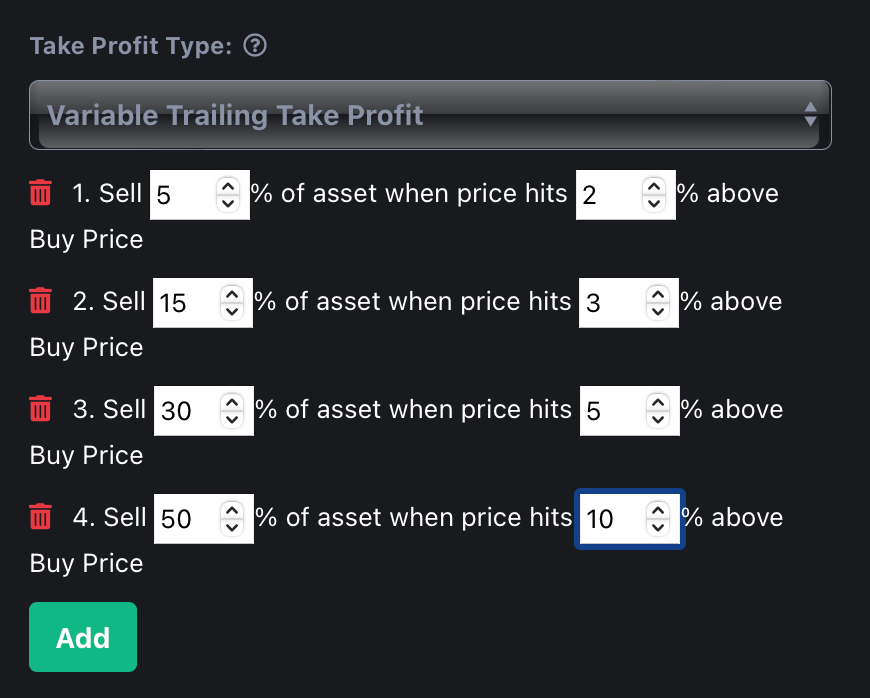
Variable TTP allows a trader to exit a percentage of the holdings whenever a price level is hit. The intervals between the price levels are not the same. It is important for the trader to ensure that the total percentages for all the asset allocations to be equal to 100%.

<figure><img src="/files/lpZqziUrCT0TaKkoauXT" alt=""><figcaption><p>(Total Sell Percentages = 100%. Variable TTP is correctly configured)</p></figcaption></figure>

If the exit percentage is not equal to 100%, the bot will never exit since there are remaining forex quantity that are not sold.

### Trailing Take Profit And Extra Order Combination

TTP allows a trader to run a dynamic yo-yo strategy. If a bot has activated TTP and encounters an entry condition again, an extra order (if set by the user) will be executed by the bot.&#x20;

This interplay of buy-sell-buy-sell allows a user to run a longer strategy profitably, as long as the price appreciates in the long run.

When a new extra order is executed, the average buy price will be refreshed based on previous buy/sell orders.

A deal is considered complete only when the bot has sold all the forex holdings bought in previous orders.


# Bot's Performance Stats

Know how good your bots are

ForexHero offers traders two of the most common metrics used to track financial performance for an investment - Sharpe Ratio and Max Drawdown. In principle, a Sharpe Ratio measures the excess returns above the Risk-free rate of return.&#x20;

Risk-free rate of return is simply the returns on the safest type of investment instrument, such as government bonds and fixed deposits. As each country has its own risk-free type of investment returns, ForexHero allows the user to set the Risk Free Rate of Return in the Settings page.

Go to Settings >> Formula to set your Risk Free Rate.


# Strategy Designer

Available for Premium and Professional users

ForexHero's latest revolutionary Strategy Designer allows a trader to create complex strategy easily. A complex strategy can also be loosely called a MultiStrat in the hedge fund world. Multiple strategies are combined to create an overarching strategy. For example, a long-short strategy is considered MultiStrat as it consists of a long followed by a short strategy, with each executing consecutively.

ForexHero's Strategy Designer offers advanced traders the ability to create complex strategies that capture a greater part of the market movement. For example, a trader can create a long-short strategy using our Strategy Designer.

The actual implementation is via Daisy-Chain in ForexHero. The Strategy Designer is only available for Advanced bot type.

Let us illustrate with an example on how to implement a Long-Short MultiStrat strategy.

* User creates Bot X (Advanced Bot) for Long strategy
* User creates Bot Y for Short strategy
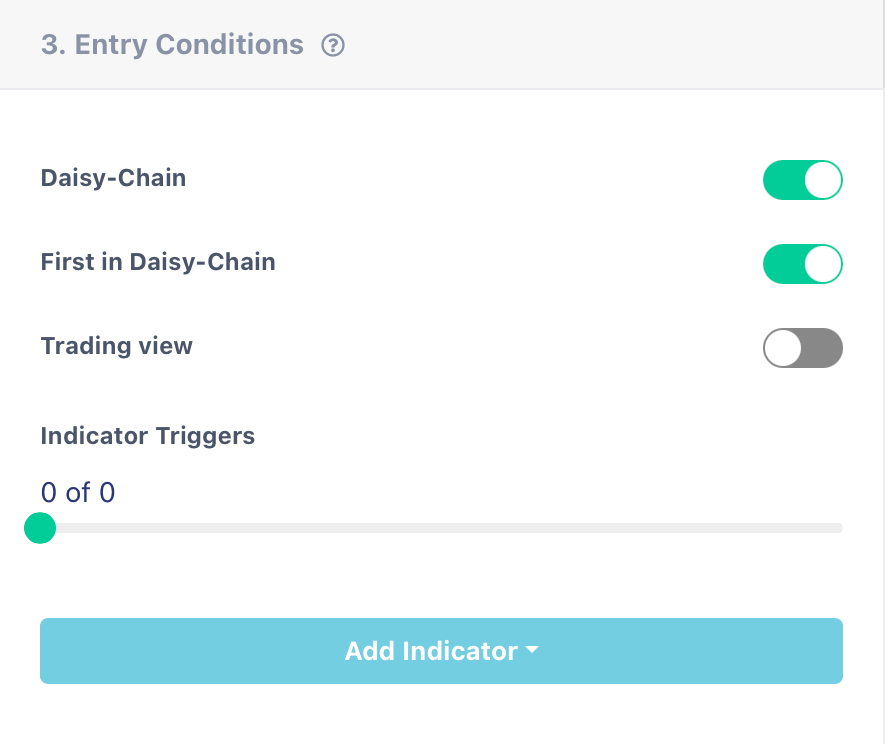
* User configures Bot X to activate Daisy-Chain and also the "First in Daisy-Chain" option. When enabled, bot X will start to run after it is created. See picture below.

<figure><img src="/files/LAi8VckxY3cNbEkpiday" alt=""><figcaption><p>(Advanced Bot X settings)</p></figcaption></figure>

* User sets Bot Y to activate Daisy-Chain but "First in Daisy-Chain" is NOT enabled. When bot Y is created, bot Y will NOT run. Its trigger is from Bot X as we will see below
* User sets bot X exit condition to trigger bot Y after X completes a deal. Similarly, Bot Y's exit condition has been set to trigger Bot X after Y completes a deal
* After X and Y are created, only X will run and monitor the market
* Bot X completes a deal and X sends trigger to Bot Y. X will NOT auto-restart. X will be deactivated
* Bot Y activates and monitors the market
* Bot Y completes a deal and triggers Bot X
* Bot X "wakes up" from its deactivated state and start to run. The whole cycle repeats.

As shown in the example above, a user has successfully created a Long-Short strategy.&#x20;

A user can link two or more bots in a daisy-chain as well.

\[Bot A]  > \[Bot B] > \[Bot C] > ….. > \[Bot Z]

If the LAST bot Z has NO trigger condition in the EXIT condition, the whole strategy (Bot A to Z) will only run once. But, if Bot Z Exit Condition has a trigger to Bot A, then the whole strategy repeats. I.e. Bot A will “wake up” and start to monitor the market.

ForexHero's Strategy Designer is like a 4GL programming language for automated trading. A trader can create multiple bots, each with its own condition in order to create a single wholistic strategy. It is really up to the trader's expertise and imagination on what complex strategy to setup using the Strategy Designer.

### Example 1

Three bots MultiStrat

| <p><br></p>     | Bot A                                                 | Bot B                                                  | Bot C                                                  |
| --------------- | ----------------------------------------------------- | ------------------------------------------------------ | ------------------------------------------------------ |
| Entry Condition | <p>Activate Daisy Chain = True</p><p>First = True</p> | <p>Activate Daisy Chain = True</p><p>First = False</p> | <p>Activate Daisy Chain = True</p><p>First = False</p> |
| Exit Condition  | Trigger B                                             | Trigger C                                              | Trigger A                                              |

Above strategy will cause the following sequence: A > B > C > A > B > C > (repeats)

Bot A will activate on creating/updating since Activate Daisy-Chain = True AND First=True

### Example 2

| <p><br></p>     | Bot A                                                 | Bot B                                                  | Bot C                                                  |
| --------------- | ----------------------------------------------------- | ------------------------------------------------------ | ------------------------------------------------------ |
| Entry Condition | <p>Activate Daisy Chain = True</p><p>First = True</p> | <p>Activate Daisy Chain = True</p><p>First = False</p> | <p>Activate Daisy Chain = True</p><p>First = False</p> |
| Exit Condition  | Trigger B                                             | Trigger C                                              | Trigger B                                              |

Above strategy will cause the following sequence: A > B > C > B > C > (repeats)

You can see that Bot A is only run once as no other bot triggers Bot A.

### Example 3

<table data-header-hidden><thead><tr><th></th><th width="206"></th><th></th><th></th><th></th></tr></thead><tbody><tr><td><br></td><td>Bot A</td><td>Bot B</td><td>Bot C</td><td>Bot D</td></tr><tr><td>Entry Condition</td><td><p>Activate Daisy Chain = True</p><p>First = True</p></td><td><p>Activate Daisy Chain = True</p><p>First = False</p></td><td><p>Activate Daisy Chain = True</p><p>First = False</p></td><td><p>Activate Daisy Chain = True</p><p>First = False</p></td></tr><tr><td>Exit Condition</td><td>Trigger B</td><td>Trigger C</td><td>Trigger D</td><td>Trigger A</td></tr></tbody></table>

Above strategy will cause the following sequence A > B > C > D > A > (repeats)

### Example 4

<table data-header-hidden><thead><tr><th width="103"></th><th width="146"></th><th width="147"></th><th width="139"></th><th></th></tr></thead><tbody><tr><td><br></td><td>Bot A</td><td>Bot B</td><td>Bot C</td><td>Bot D</td></tr><tr><td>Entry Condition</td><td><p>Activate Daisy Chain = True</p><p>First = True</p></td><td><p>Activate Daisy Chain = True</p><p>First = False</p></td><td><p>Activate Daisy Chain = True</p><p>First = True</p></td><td><p>Activate Daisy Chain = True</p><p>First = False</p></td></tr><tr><td>Exit Condition</td><td>Trigger B</td><td>Trigger C</td><td>Trigger D</td><td>Trigger A</td></tr></tbody></table>

Above strategy will cause bots A and C to be activated together.

Sequence: A > B > C > D > A > (repeats)

What if Bot C activates BO first?, then, it will look like

C > D > A > B > C > D > A > (repeats)

Hence, there is a danger of “race condition” (in computer science where two resources compete for the same resource X) if a user sets two bots as First=True in a single daisy-chain.

So if a Bot X calls another bot Y to activate and Y is already active, X will become deactivated (as per normal like a daisy-chain bot) but an error message will appear “Attempt to call an active bot in the daisy-chain”. HOWEVER, X can still be activated again if another bot triggers X as part of the daisy-chain.

{% hint style="info" %}
Multiple daisy-chains can be created as well such that each chain of bots are mutually exclusive.&#x20;
{% endhint %}

### Strategy Designer for TradingView

Daisy-Chain linking can also be activated for TradingView signals.&#x20;

Whenever a signal is received and if the bot has daisy-chain enabled, ForexHero will check if the bot is "First in Daisy-Chain". If yes, the bot will execute a trade. If not, the bot will check prior linked bot to see if it has already completed a deal. If yes, the bot will execute a trade, else it will do nothing.


# Bollinger Band

The Bollinger Bands (BB) were created in the early 1980s by financial analyst and trader John Bollinger. Bollinger Bands work as an oscillator. It indicates whether the market has high or low volatility, as well as overbought or oversold conditions.&#x20;

{% hint style="info" %}
ForexHero Bollinger Band: a buy signal is generated when the candlestick data reaches oversold, and a sell signal is generated when it reaches overbought.
{% endhint %}

![](/files/-M64Hd5Tv5Qm7ctlwfjC)

The core concept behind the BB indicator is to highlight how prices are dispersed around an average value. More specifically, it is composed of an upper band (red), a lower band (yellow), and a middle band (blue), also known as the middle moving average line. The two sidelong bands react to the market price action, expanding when the volatility is high, moving away from the middle line) and contracting when volatility is low, moving towards the middle line.

```
Middle line = (SMA, n)
Upper band = (SMA, n) + (20-day standard deviation * y)
Lower band = (SMA, n) - (20-day standard deviation * y)

Where: 
n = Time Period
y = standard deviation multiplier
```

The standard Bollinger Bands formula sets the middle line as a X-day Simple Moving Average (SMA) while the upper and lower bands are calculated based on the market volatility in relation to the SMA, which is referred to as standard deviation.


# EMA

Exponential Moving Average (EMA) is a weighted approach derived from Simple Moving Average (SMA). EMA gives more weight to more recent price data with the core concept that the more recent the data is, the higher value it should have. In contrast, SMA gives equal weight throughout the averages regardless of time relevancy. Using a longer time period for moving averages indicate long term trends, short time frame periods indicates the short term trends.

{% hint style="info" %}
ForexHero EMA: a buy signal is generated when the short term EMA crosses above the long term EMA, a sell signal is generated when the short term EMA crosses below the long term EMA.
{% endhint %}

![](/files/-M64JNU121s8dh3BuwSh)

A rising EMA suggests an upward trend and a falling MA indicates a downtrend. EMA Crossing is a crossover signal is created when two different time period EMAs crossover in a chart. A bullish crossover happens when the short-term MA (blue) crosses above a long-term one (red), suggesting the start of an upward trend. In contrast, a bearish crossover happens when a short-term MA crosses below a long-term moving average, which indicates the beginning of a downtrend.&#x20;

```
SMA = ( Sum (Price, n) ) / n    
EMA = ( P - EMAp ) * K + EMAp

Where:
P = Price
EMAp = the Exponential moving Average for the previous period
K = 2 / (n + 1), the smoothing constant
n = Time Period
```


# RSI

The Relative Strength Index (RSI) is a momentum oscillator that measures the magnitude of price movements as well as the speed or velocity of these movements. RSI measures the changes in price over a time period. The formula divides the average gain the price has had over that time by the average loss it has sustained and then plots data on a scale from 0 to 100 and is plotted on a separate chart.&#x20;

{% hint style="info" %}
ForexHero RSI: a buy signal is generated when RSI is oversold, a sell signal is generated when RSI is overbought.
{% endhint %}

![](/files/-M64LTSkisznQUdV5hHE)

RSI values (purple) closer to 0 indicates overbought market conditions while values closer to 100 indicates oversold. Thresholds (yellow band) are usually assigned to RSI values, anything below 30 indicates sold, while above 70 can indicate overbought. For time period and trading intervals, lower thresholds may be used as a measure to reduce market noise or to produce a more confident signal.

```
RSI = 100 – 100/ (1 + RS)
RS = Average Gain of n days UP  / Average Loss of n days DOWN
```


# Stoch RSI

Stochastic RSI or Stoch RSI is a derivative of Relative Strength Index (RSI) is a momentum oscillator type of technical indicator. It oscillates between 0-100 values. RSI values closer to 0 indicates oversold market conditions, while values closer to 100 indicates overbought.&#x20;

{% hint style="info" %}
ForexHero Stoch RSI: a buy signal is generated when Stoch RSI is oversold, a sell signal is generated when Stoch RSI is overbought.
{% endhint %}

![](/files/-M64NAGVQ-aWiQ3388gs)

Stoch RSI values (red and blue lines) closer to 0 indicates overbought market conditions while values closer to 100 indicates oversold. Thresholds (yellow band) are usually assigned to Stoch RSI values, anything below 20 indicates sold, while above 80 can indicate overbought. For time period and trading intervals, lower thresholds may be used as a measure to reduce market noise or to produce a more confident signal.

```
RSI = 100 – 100/ (1 + RS)
RS = Average Gain of n days UP  / Average Loss of n days DOWN

Stoch RSI = (RSI - Lowest Low RSI) / (Highest High RSI - Lowest Low RSI)

Where:
n = Time Period
```


# MACD

The Moving Average Convergence Divergence (MACD) technical indicator is a popular trend prediction tool which provides an indication of a bull or bear inflection point.

MACD consists of three key parameters, namely the slow, fast periods and the signal lines. The MACD line is formed by subtracting the value of the slow period from a fast period. The standard is 26 for the slow period and 12 for the fast period.

## Determining the Trends

Traders often make use of the crossover between the MACD and Signal line to determine if the market is heading into a bullish or bearish phase.&#x20;

* If the MACD line crosses the Signal line from below to above, it is generally considered bullish.
* If the MACD line crosses the Signal line from above to below, it is generally considered bearish.

The crossovers are often triggers for traders to enter or exit a position.

![(Bullish Trend)](/files/-MjrXYHhLMhNRxvaGR8t)

From the graph above, we can see that the MACD line (blue line) crosses the signal line (red line) on or near Aug 31, 2021. The following few days resulted in a bullish uptrend for the stock.

![(Bearish Trend)](/files/-MjrXy7rrW0bQlkkl-cv)

For the same stock, the previous bullish trend turned around to a bearish trend on Sep 7. As the chart shows, the MACD line has dropped from above to below the Signal line.

For seasoned traders, ForexHero offers the ability for them to configure the specific values for the fast and slow periods as well as the signal line period.&#x20;


# Volume

Volume is often a key metric in determining if a breakout is a fake-out or if it is possibly real. Typically, if a breakout is sustained with low volume, then usually the breakout may turn out to be a false alarm. However, if a breakout is accompanied with strong volume, it is usually a sign that the rally can be sustained.

ForexHero allows our users to include a Volume indicator. The volume indicator can be configured by setting an average volume over the previous X number of time interval (candlesticks). It does not include the volume in the current candlestick.


# TradingView

Available for Premium and Professional plans

TradingView is the world's largest P2P trade signal marketplace. A user who is very experienced in TradingView (TV) can now leverage on TV's signal and activate ForexHero's bot to enter a trade.

ForexHero has made it very versatile for a user to integrate TradingView. A user can receive TV's signals and activate either *Base* or *Extra* orders. TV's signal integration is also available in Advanced, DCA and Exit bot types, therefore, enhancing the capabilities of our bots.

With this feature, a ForexHero user will be able to access the thousands of TV's technical indicators and signals and integrate them with ForexHero.

### Integrating TradingView

{% hint style="info" %}
If you activate TradingView for your bot, you cannot accommodate other indicators. TradingView signal integration operates exclusively as its own indicator.
{% endhint %}

To integrate TradingView, first create an alert. Of course, you need to have an existing account with TradingView in order to do this.

Look for the **Alert actions** configuration. It will look like this:

Enter the URL below (as shown in the image above) into the Webhook URL field:&#x20;

&#x20;                                                          <mark style="color:orange;"><https://web.forexhero.ai/tvapi></mark>

You may select the Option "Only Once" or "Every Time" as shown in the image below.

![(Select Only Once)](/files/DS77oIzfrbmlrMebbm97)

If you select "Only Once", this will prevent TV from repeatedly sending messages to ForexHero each time the condition is met. If you select "Every Time", TV will notify ForexHero each time TV condition is met. **Choose "Every Time" if you have multiple extra orders set for the bot.**

You may also set an expiration time for the TV alert if you prefer. Please be aware that if there is an expiration time, the bot will no longer be effective after the expiration date since it will be listening to a "dead-end".

### Adding TradingView to your Bot

You may add up to five TradingView signals for each Entry and Exit conditions (it may vary as we further develop this).&#x20;

To activate TradingView for your bot, click the TV switch as shown in the image below.

![(Enabling TradingView)](/files/WrEUEFmSiqgXsEgJq7ip)

Then, click the Add Indicator button. A pop up window showing the TV settings will be shown. Each TV indicator is unique. You will be able to configure if this specific and unique TV indicator should make a Base or Extra order purchase.

Please note that in order to give our users the utmost flexibility, ForexHero allows the user to create up to five TV indicators. Not only that, you can also create combinations of the indicators to either activate the Base or Extra Orders. As long as any TV signal is received, ForexHero will activate the Entry condition (or Exit condition if the TV indicator is set there).&#x20;

Let's assume you have created three TV indicators as shown in the image below:

![(Bot will activate Entry condition if any of the TV signal is received)](/files/DtoP41PKiNMvKRXl6ewB)

If the topmost indicator (listening for base order) is received, ForexHero will execute your base order. However, if either of the bottom two TV indicator signal is received, ForexHero will execute your extra order. However, if any of the two Extra Order indicator is received before the Base Order indicator, the Extra Order indicator will be ignored.

Let's look at this example where all three TV indicators are listening for the Base order:

![(Bot will activate if one of the three TV signal is received)](/files/uS34CecJ36w8fdV1GGiX)

The bot will call the entry condition if any of the three TV indicator is received by ForexHero.

### Adding the ForexHero's TV Message to TradingView

Each ForexHero TV indicator has its own unique message string. It will look like this

> {"checksum":"some random string","type":"entry","order":"base"}

Simply copy and paste the entire message into your TradingView's Message box. The message box is located below the Webhook URL field.

![(TradingView Alert Window - Placeholder for ForexHero message)](/files/wdXWhmmyLkGB6ek7v4ls)

{% hint style="info" %}
Be sure to include the opening and closing braces - " { " and " } "
{% endhint %}

{% hint style="info" %}
IMPORTANT: Backtest does not work for TradingView signals as ForexHero signal engine does not receive historical TradingView signals.
{% endhint %}


# Mandatory Indicators

ForexHero allows an indicator to be set as Mandatory (or Required). A mandatory indicator basically means that the entry/exit condition MUST contain the signal for this indicator before the entry/exit condition is considered fulfilled.

A mandatory indicator will make more sense if a user has set at least two indicators for the entry/exit condition. Sometimes, a user may create up to 5 indicators and set the condition that at least two of them needs to be met before the entry/exit condition is fulfilled. However, the user may require one of the 5 indicator to be present and hence, will tag that indicator as "Mandatory".

The table below shows an example of when entry/exit condition is considered fulfilled. An (R) beside the indicator denotes a Mandatory indicator.

| Indicators                     | Combination | Signal Received  | Condition Met? |
| ------------------------------ | ----------- | ---------------- | -------------- |
| RSI, Volume                    | 1 of 2      | RSI              | Y              |
| RSI(R), Volume                 | 1 of 2      | Volume           | N              |
| RSI(R), Volume                 | 1 of 2      | RSI              | Y              |
| RSI,EMA(R),Stoch RSI           | 2 of 3      | RSI, Stoch RSI   | N              |
| RSI,EMA(R),Stoch RSI           | 2 of 3      | RSI, EMA         | Y              |
| RSI,EMA(R),Stoch RSI           | 2 of 3      | EMA, Stoch RSI   | Y              |
| RSI(R),EMA,SRSI, BB, Volume    | 2 of 5      | EMA, SRSI        | N              |
| RSI(R),EMA(R),SRSI, BB, Volume | 3 of 5      | EMA, SRSI, BB    | N              |
| RSI(R),EMA(R),SRSI, BB, Volume | 3 of 5      | RSI, EMA, Volume | Y              |

Mandatory indicators offer traders a powerful option to remove "noise" from the market.

### Mandatory TradingView Signal

You can also set a TradingView signal as a "Required" indicator. If this is enabled, you will need to set the Validity period. The Validity period refers to how long should ForexHero hold a TradingView signal before the next TradingView signal is received.

For example, if you set "60" seconds as the Validity period, and TradingView Signal 1 is received, the next TradingView Signal 2 that arrives within 60 seconds from the receipt of Signal 1, ForexHero will evaluate Signal 1 as a Required signal and execute the trade. If Signal 2 arrives after 60 seconds from the receipt of Signal 1, the bot will not execute. This is because Signal 1 is set as a "Required" indicator.


# Supported Brokerages

ForexHero currently supports the following brokerages. We will be adding more in the future. If you would like us to take a look at a brokerage, drop us an email.

There are many other ForexHero users who rely on ForexHero's signals to trade on their own preferred brokerages. [Read this article ](https://blog.forexhero.ai/using-cfdhero-for-your-cfd-trading-signal/)to find out more!

### Supported Brokerages

Please click on any of the broker's link to view connection instructions.

1. [Forex.com](https://www.forex.com)
2. Others (please email us at <help@novum.global> and mention your forex broker for our consideration)

### Who is City Index?

City Index is one of the world's largest CFD trading platform with more than one million accounts. It is part of StoneX Group, a [Fortune 500 company](https://fortune.com/company/stonex-group/fortune500/). Established since 1983, City Index offers over 6,000 markets to choose from across forex, indices, shares and commodities. Forex.com is also part of the StoneX group of companies.


# Forex.com

World's leading foreign exchange trading platform

{% hint style="info" %}
Forex.com is from StoneX, the same company behind City Index. Sign up with Forex.com if you are not able to sign up with City Index due to country restrictions.
{% endhint %}

Please email your local Forex.com account representative to request for the API keys.


# Terminology

Definitions and meanings of words and phrases found in ForexHero

## APY

Annual Percentage Yield as it is called, calculates the return of an investment over a twelve month period based on compounding interests/returns within the same period. For example, if a bot has been operating for six months and has an absolute 25% return (starting capital is 1000 USD, end of six month is 1250 USD), the APY will be 56.25%.&#x20;

## Bot

A *bot* is a program which executes trades (such as buy or sell) based on the entry and exit conditions set by the user. The advantage of a bot is the ability to monitor market conditions on a 24/7 basis and consequently to start a *deal* when an entry condition is met.

## Bot Template

A *bot template* is a bot that is offered for rental on the Bots Marketplace. A user can create up to 2 bots from a single bot template rental.

## Deal

A *deal* is created by a bot whenever entry conditions are met. A *deal* consists of a set of trades. Whenever a bot's entry condition is met for the first time, a *deal* will be created together with the first trade. You will see this newly created *deal* in the Deals page under the **Open Deals** tab. You may view the trades contained in a *deal* by clicking on the eye icon.

A *deal* completes when the bot's exit conditions are met or when the deal is *liquidated* by the user. A completed *deal* can be found under the **Completed Deals** tab.

A *deal* always consists of at least two trades - a Buy and a Sell trade. There maybe multiple Buy trades depending on whether the bot has been configured for **Extra Orders.**

A chronological order of how a bot creates a deal is illustrated below:

Time T: Bot monitors market signals

T + 1h: Bot's entry condition is met and creates a new *deal*. Bot executes a buy order in the newly created *deal*. This same *deal* can be found under the Open Deals tab.

T + 2h: Bot's exit condition is met and executes a sell order. The *deal* is now marked as Complete. This completed *deal* can be found under the Completed Deals tab.

## Portfolio

A *portfolio* is a collection of assets linked to the user's broker account/exchange. It is usually denominated in USD. The total USD portfolio value may fluctuate due to the differences in USD pricing for each of the instrument.

## Liquidate

If a *deal* remains open, the user has the option to instruct the bot to ignore the exit conditions and execute a Market Sell order. This is known as *liquidation*. After a *deal* is liquidated, the *deal* completes (the completed *deal* is found under the **Completed Deals** tab) and the bot resets itself. The reset bot will then create a new *deal* based on the entry condition for the corresponding *Base Order* amount.

## Filled

A buy or sell trade is considered *filled* if the entire quantity of the underlying assets are fully bought or sold. For example, if the bot executes a buy order for 1 AAPL and only 0.3 AAPL is bought, this order is considered *partially filled.* It is only when the remaining 0.7 AAPL is also purchased will the buy trade be considered *filled*.

## W/L Ratio

ForexHero tracks all of the completed *deals* which result in profits or losses. If all of a user's *deals* are profitable, then the *W/L (Win/Loss) Ratio* is 100%. If out of ten completed *deals*, only three are profitable, then the *W/L Ratio* is 30%.

## Bot Status = Waiting

A *bot* is waiting to create a new *deal* based on the entry condition set. No trades have been executed yet. In the mobile app, a Waiting bot will have an amber/yellow colour circle button.

## Bot Status = In Progress

A *bot* which has already created a *deal* has the status marked as "in progress". You will see this open *deal* in the Deals page. The bot is still actively monitoring the market waiting to make the next trade. In the mobile app, a bot that has started a deal will have a green colour circle button.

## Fund Allocation

A user can set the maximum amount of capital made available to the bot to trade from. *Fund allocation* is an essential tool in risk management for any users. For example, a user may only want to allocate 10% of his capital to a bot if the bot's strategy is yet to be proven. Subsequently, the user can increase the *fund allocation* if the bot's strategy is good.

## Base Order Limit & Extra Orders

*Base order limit* dictates how much of the allocated fund to use for making the first trade (when a *deal* is newly created by the bot). This is best illustrated through the following example:

If a user allocates 10,000 USD and sets the base order limit as 20%, the bot will utilize 2,000 USD (representing 20% of 10,000 USD) to execute the first order.

Extra Orders refers to the number of subsequent trades (after the first trade is made) which the bot will execute. The extra orders are divided equally from the remainder left after the base order limit is deducted from the allocated fund.

&#x20;                                                         Fund Allocation = Base Order + Extra Orders

Using the above example, if the user sets base order limit as 20% and wants the bot to make 2 additional Extra Orders, each of the extra order will utilize 40% of the allocated fund since after the base order is executed, only 80% of the allocated fund remains.

## Trading Frequency

A *bot* will acquire the market data at intervals defined by *trading frequency*.&#x20;

15m - Bot reads market data every 15 minutes

1h - Bot reads market data every 1 hour

4h - Bot reads market data every 4 hour

1D - Bot reads market data once a day

After a bot has acquired the data at each interval, it will process the same data and determine if entry or exit conditions are met. If conditions are met, a trade will be executed.

## Indicator

An indicator is a trade signal or value derived from complex algorithms based on the type of indicator used. These algorithms acquires market data such as volume, price, price-action, momentum and so on, and subsequently produce a value or signal for traders as part of their decision making process.&#x20;

## Take Profit

A user can configure the bot to close a deal if the profit hits a percentage of the allocated fund. A Take Profit exit condition has priority over Indicator-based exit conditions.

## Stop Loss

A user can configure the bot to close a deal if the loss hits a percentage of the allocated fund. Please note that Take Profit and Stop Loss have priority over Indicator-based exit conditions.

## Backtest

A user can test the efficacy of a bot (based on the parameters set) by running a backtest. This is a risk free manner for users to check that their bot's performance is acceptable. However, it must be noted that a good backtest result does not neccessarily guarantee good forward-looking performance for the bot.


# Frequently Asked Questions

Answers to common issues faced by our users

## Why is ForexHero not showing my account balance even though I have few thousands in my City Index account?

It is usually due to wrong account type. Please email us at <admin@forexhero.ai> for assistance.

## Why is my bot not doing anything after few hours?

How soon a bot opens a new deal (either executing a buy or sell order if the strategy is long or short respectively) will depend on the Entry Conditions configured for the bot. It is common for a bot to take days and even weeks before the prescribed Entry Conditions are met, depending on market volatility.

One of the most important and deciding factor is the bot's Trading Frequency. The shorter the frequency (15m), the higher the chances for the bot to enter into a trade faster. Conversely, the longer the interval (1h to 1D), the longer the bot takes to enter a trade. There are certain pros and cons to trading between short and long intervals. One of the consideration is the user's risk appetite.&#x20;

As a general rule of thumb, the shorter the interval (15m versus 1h), the faster the bot will execute the trade.

## After I have liquidated a deal, does the bot auto restart?

Yes, if you have manually initiated a deal liquidation, the bot will auto-restart and start to wait for the Entry Conditions to be satisfied before entering a new Deal.

## Can ForexHero support a new forex?

Yes, please drop us an email (<admin@forexhero.ai>) or use the contact form found in your ForexHero account. We will add the new instrument typically in a day or two.

## Why does my bot auto-deactivate by itself?

The most common reason why a bot deactivates automatically is due to insufficient capital required to execute the trade. This usually happens if a user accidentally use the underlying assets for his own trading purpose. Another common reason is that the user increased the bot's allocation for Extra Order after the bot has executed Base Order.

Another common reason is due to an invalid API key (such as trading account getting suspended or banned or wrong trading permissions set). Occasionally, this can happen for unknown reasons.

{% hint style="info" %}
If you are using **DYNAMIC** order, the bot will add previous profits to the next Deal. Hence, it may seem that you have actually allocated sufficient capital but, in fact, the bot's internally computed capital is higher. We recommend using **STATIC** order if you may be reallocating the profits made by the bots. It is also simpler and clearer.
{% endhint %}

## I need help. Who can I contact?

ForexHero offers several ways for our users to contact us. Please take a look at the various channels below.

* Web Form
* Email (<admin@forexhero.ai>)
* WhatsApp. The link is available in the app.
* [Telegram](https://t.me/stockheroai) (Please PM @novumgroup)

Our ForexHero team will strive to respond to your request for assistance within a day.

## I am not able to activate my bot. It just does not go to the active state. Why?

One of the most common reason is that the capital is insufficient based on the allocated amount configured for the bot. For example, if you have allocated 1,000 USD to the bot but your actual balance on the brokerage account is 500 USD, then the bot will not start. You will need to either a) reduce the allocated balance or leverage or b) increase the balance on your brokerage account.

## I have set 1% as the Take Profit level. Why does my bot not do this?

One of the most common reason is the quantity previously bought by the bot (for long strategy) is insufficient for the bot to sell at. This can happen when other bots "dip" into the same pool for their deal executions. Conversely, for a short strategy, the bot encounters insufficient amount of Quoted Currency to Take Profit (buy back the digital assets which were sold).&#x20;

## I have 100 USD available. I have set Allocated Fund to 98 USD and the Base Order to 100%. The bot made a new Deal but the total USD used for my Base Order is only 70 USD. Why?

The most common reason is because of the **Dynamic** setting. Most probably, the bot encountered a loss in the previous deal that resulted in a proceed of 70 USD. Hence, for the current deal, it will only use 70 USD for the trade.&#x20;

## I tried to update my bot but encountered this error message: "Some bot settings cannot be updated while the deal is running"?

This happens when the bot has an Open Deal running and you are trying to modify the Trade Parameters. You may **only** modify the Exit Condition and click the "Apply Changes to existing deal" to apply your latest changes for the bot if there is an Open Deal. If the bot has not opened any deal, you many configure any settings for the bot.

## What is the minimum amount I can trade with ForexHero?

ForexHero is not a wallet nor an investment platform. It is A **Software-as-a-Service**. It trades,  using our bots, using the assets available in your brokerage account. Hence, the minimum amount which you can trade depends on the minimum requirement as determined by the brokerage. Please consult your brokerage regarding the minimum quantity of assets/USD you can trade.&#x20;

##


# Release Notes

Check this page for latest updates

<details>

<summary>January 30, 2024</summary>

* Launch of ForexHero.ai

</details>


# Terms of Use

The latest [terms and conditions](https://www.forexhero.ai/terms.html) for using ForexHero.


# ForexHero Telegram

Our Telegram Announcement is located at https\://t.me/forexheroai

ForexHero runs an official Telegram [Announcement Channel](https://t.me/forexheroai). The aim of this channel is to make announcements regarding ForexHero developments.&#x20;


# Official Communities

List of all Telegram communities (channels) supported by ForexHero team. By support, it means that we will push announcements to these channels.

## Telegram

{% hint style="info" %}
WARNING: Telegram channels are highly susceptible to scammers. Please note that ForexHero team members will NEVER NEVER direct message/PM you. If you receive any communication purportedly from our team, do NOT engage further.
{% endhint %}

### Our Official Telegram Handle: @novumgroup

### English

* <https://t.me/forexheroai>